You spent hours filming a wellness tutorial—only to realize your audience scrolls with sound off. Silent videos flop. But wrestling with clunky subtitle tools? Exhausting. And generic auto-captions butcher your carefully chosen words. What if you could create subtitles Canva-style—fast, beautiful, and on-brand?
Why Most Subtitle Methods Fail Wellness Creators
Auto-caption tools spit out robotic text with zero rhythm. Manual typing in video editors eats your time—time you’d rather spend meditating or planning your next session. Worse, mismatched fonts and poor timing scream “amateur,” undermining your credibility. And forget consistency across Reels, Stories, and YouTube Shorts. The result? A disjointed presence that confuses followers—and algorithms.
Think about it: your message matters. Your captions should reflect that care—not look like an afterthought.
How to Create Subtitles Canva-Style in Under 10 Minutes
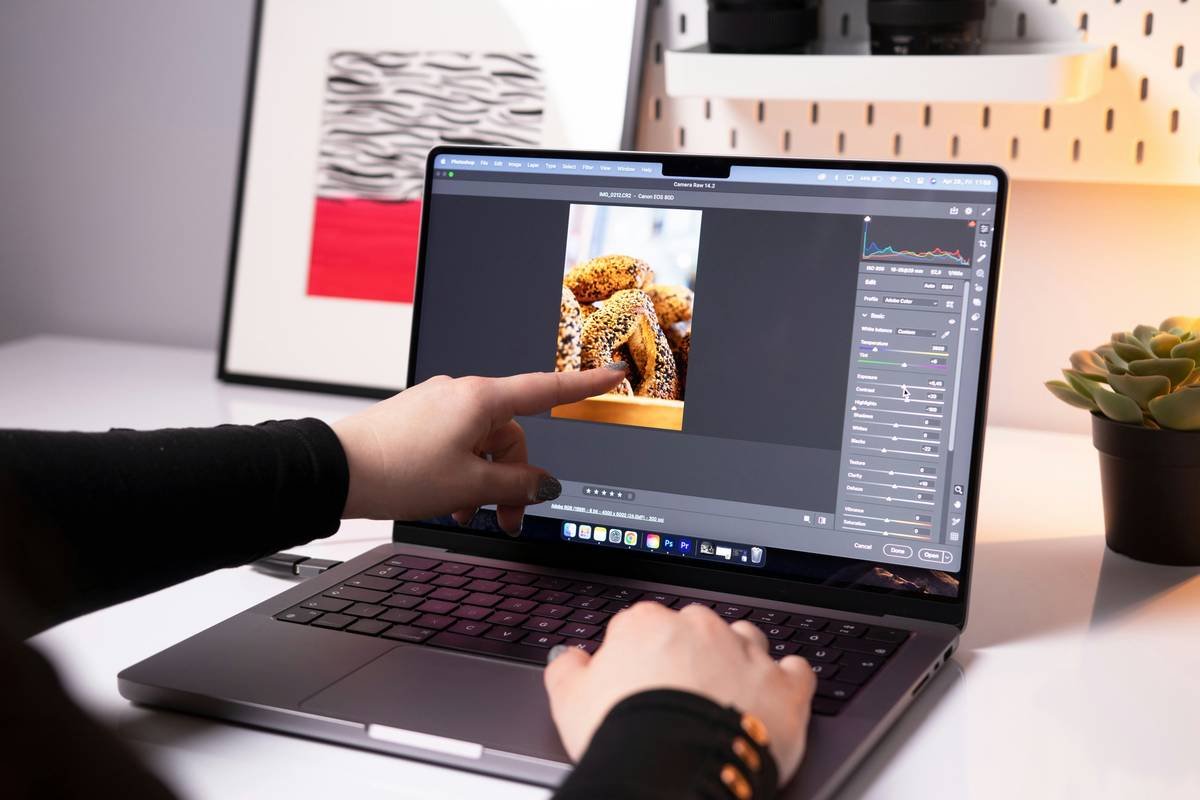
Canva’s built-in caption tool is decent—but limited. Here’s how to go beyond basic drag-and-drop and craft subtitles that elevate your wellness content:
Pick the Right Template Size First
Start with a 9:16 canvas for Reels or 1:1 for Instagram posts. Wrong dimensions = awkward text cropping or wasted screen real estate.
Use “Subtitles” Under Apps—Not Text Boxes
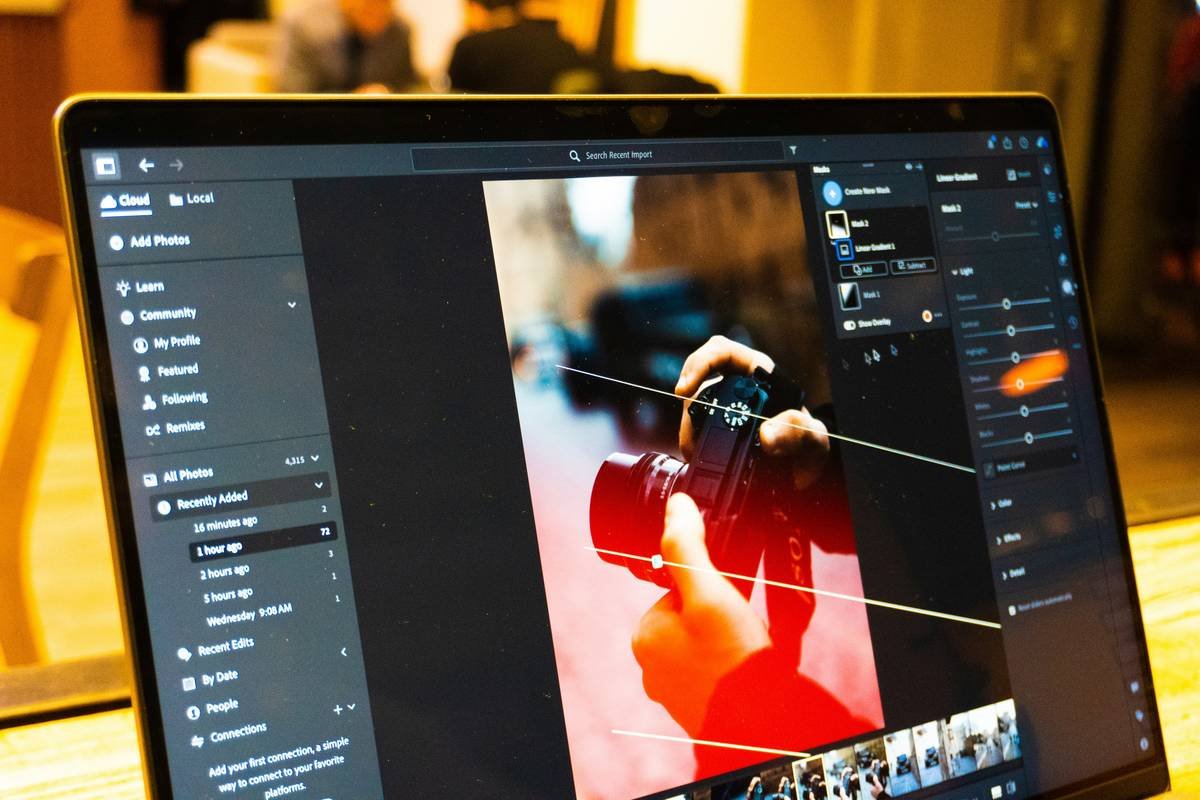
Canva’s dedicated Subtitles app auto-syncs with audio uploads. Skip manual typing. Just upload your voiceover or video, let it transcribe, then edit phrasing—not every single word.
Brand Your Captions Visually
Swap default fonts for clean sans-serifs like Montserrat or Lato. Set a consistent color palette—soft whites with subtle shadows work best on nature backdrops common in wellness content. Avoid ALL CAPS; sentence case feels calmer, more trustworthy.
| Method | Time Required | Design Control | Cost |
|---|---|---|---|
| Canva’s Native Subtitles App | 5–8 min | Moderate (font, size, position) | Free (Pro unlocks more fonts) |
| Manual Text Boxes + Audio Timing | 15–30 min | High (frame-by-frame control) | Free |
| Third-Party Tools (CapCut, Descript) + Import | 10–20 min | Variable | Freemium |
| Professional Caption Services | 24–72 hrs | None (you approve only) | $20–$80/video |

The Industry Secret: Subtitles Are Silent Salespeople
Here’s what no one tells you: captions don’t just aid accessibility—they shape perception. In wellness, tone is everything. A subtitle reading “Breathe into your belly” in a gentle font feels like guidance. The same words in bold Arial? Feels like a command. And viewers subconsciously judge your expertise by typography alone.
But—and this is critical—most creators ignore pacing. Long sentences overwhelm mobile viewers. Break lines at natural breath points. Four words per line. Max. That’s not design—it’s neuroscience. Short bursts match how brains process spoken language visually. The math is simple: better pacing = higher retention = more trust.
Frequently Asked Questions
Can I auto-generate subtitles in Canva for free?
Yes. Upload a video with audio, click “Subtitles” under Apps, and Canva will auto-transcribe. Free users get basic editing; Pro unlocks custom fonts and styles.
How do I sync subtitles manually in Canva?
Drag each subtitle block on the timeline to match your voice. Zoom in on the editor for frame-level precision—especially useful for affirmations or breathing cues.
Why do my Canva subtitles disappear on Instagram?
Instagram crops videos differently than Canva previews. Always leave a 10% margin at top and bottom. Test export before posting—never assume.