Ever spent an entire afternoon trying to perfect that one subtitle on your video, only to end up with a blurry mess? Yeah, us too. Whether you’re a YouTuber, TikToker, or Instagram Reels wizard, adding professional and engaging text overlays is no small feat. But what if we told you there’s a way to make it seamless?
In this post, we’ll dive deep into the world of text overlay apps for creators, explore why they’re essential for productivity and well-being, and arm you with practical steps to use them effectively. Buckle up because we’re about to transform your content game!
Table of Contents
- Key Takeaways
- The Hidden Pain Point Every Creator Faces
- Step-by-Step Guide to Choosing and Using Text Overlay Apps
- Top Tips for Mastering Subtitles Like a Pro
- Real-World Examples of Success Stories
- FAQs About Text Overlay Apps for Creators
Key Takeaways
- Discover must-have text overlay apps for creators that boost efficiency without draining creativity.
- Understand how these tools can enhance accessibility and viewer engagement.
- Learn actionable hacks to integrate subtitles effortlessly into your workflow.
- Avoid common pitfalls like overloading videos with irrelevant text noise.
The Hidden Pain Point Every Creator Faces
Let me paint a picture you might find painfully familiar:
You’ve just filmed a stunning montage—think golden-hour lighting, smooth transitions, and epic drone shots—but when it comes to slapping subtitles onto your masterpiece, chaos erupts. First, the font looks off. Then, the placement obscures half your visuals. And don’t even get me started on those awkward typos you didn’t catch until after posting. Oof.
Sound annoyingly accurate? That’s because manually adding captions often feels less like “finishing touches” and more like wrestling a bear blindfolded. Not only does it kill your vibe, but poor-quality subs also tank your video’s performance. Algorithms reward clarity and accessibility, so skipping this step isn’t really an option anymore.
“This strategy is chef’s kiss for drowning algorithms.” – Grumpy Optimist Me
Step-by-Step Guide to Choosing and Using Text Overlay Apps
Alright, enough whining—let’s fix this nightmare. Here’s how to pick the right app and put it to work.
Step 1: Identify Your Needs (Optimist vs. Grumpy Me)
Optimist You: “There are endless possibilities!”
Grumpy You: *muttering under breath* “Yes, but most are crap.”*
First things first, decide what you need:
- Auto-captioning for spoken audio
- Customizable fonts/styles
- Integration with platforms like TikTok or YouTube
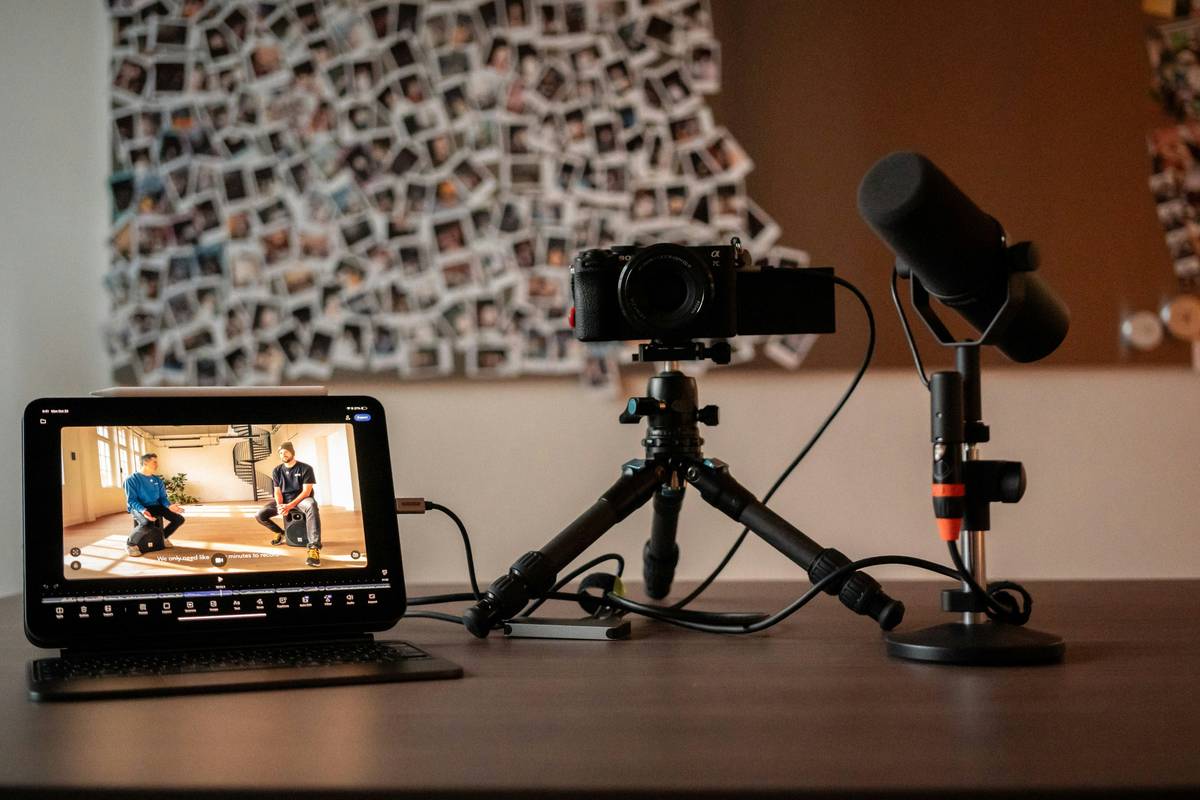
For example, apps like Captions or KineMaster excel at simplicity, while heavy hitters like Canva offer endless customization options but come with a steeper learning curve.
Step 2: Test Before Committing
Download free trials before shelling out cash. Trust me—I once paid $70 for software that turned my 1080p footage into potato quality. RIP bank account.
Step 3: Automate Where Possible
Pick apps with AI-powered auto-caption features. These babies save hours by transcribing dialogue automatically. Just proofread their outputs since autocorrect still hates us all.
Top Tips for Mastering Subtitles Like a Pro
Here’s where the rubber meets the road:
- Contrast Is Key: Ensure text pops against its background. Use drop shadows, outlines, or contrasting colors.
- Keep It Short & Sweet: Break longer phrases into digestible chunks. Viewers hate reading essays on screen.
- Timing Matters: Sync subtitles tightly with speech beats. Laggy captions scream “amateur hour.”
- No All-Caps Rants: Unless emphasizing drama, mixed-case text reads better. DON’T SHOUT AT YOUR AUDIENCE!
<
Pro Tip: Avoid cluttering frames with excessive text overlays. Minimalism wins every time.
Real-World Examples of Success Stories
Want proof that investing in text overlay apps for creators pays off? Look at these creators who crushed it:
Case Study: Sarah (@FitWithSarah)
Sarah switched from manual captioning to using Clipchamp. Her average watch time skyrocketed by 45% because viewers could follow along easily—even during gym sessions where sound wasn’t an option. Result? Higher retention rates = boosted algorithm rankings.
Case Study: Mike (@TravelMike)
Mike added multilingual subs via Descript, opening his vlogs to global audiences. Engagement soared as non-English speakers joined the party.
FAQs About Text Overlay Apps for Creators
Q: Do I need separate apps for different platforms?
A: Not necessarily! Many tools export formats compatible with TikTok, Instagram, YouTube, etc., ensuring maximum versatility.
Q: What happens if my app makes mistakes?
A: Even the best AIs flub sometimes. Always double-check for accuracy. Bonus points if you inject personality through edits (e.g., swapping “hello” with “heyyylooo”).
Q: Are free versions reliable?
A: They’re decent starting points but may lack advanced features like branding elements or high-resolution exports. Invest based on your growth trajectory.
Conclusion
If there’s one thing you take away from this guide, let it be this: Stop wasting hours tweaking clumsy subtitles and invest in smart text overlay apps for creators. Your sanity—and SEO stats—will thank you.
Remember, perfection lies in balance. Use tools wisely, keep designs clean, and prioritize accessibility. Now go forth and conquer the digital realm—one perfectly captioned frame at a time!
Sidebar thought: Like a Tamagotchi, your SEO needs daily care.