Ever spent hours trying to align text and video only for it to look awkward? Yeah, we’ve all been there. Whether you’re crafting Instagram Reels, TikTok videos, or YouTube Shorts, nailing the perfect text overlay can make or break your content game. But did you know that mastering this skill isn’t just about aesthetics—it’s a productivity hack too?
In this post, we’ll dive into why using a text overlay video editor is essential for creators looking to boost both productivity and well-being. From avoiding rookie mistakes (like unreadable fonts over busy backgrounds) to exploring top-notch tools, you’ll walk away with practical strategies to take your videos from “meh” to “chef’s kiss.” Here’s what we’ll cover:
- The pain points of not having proper text overlays.
- Step-by-step guide on using a text overlay video editor effectively.
- Bonus tips for choosing the right app to streamline your workflow.
Table of Contents
- Key Takeaways
- Why You Need a Text Overlay Video Editor Right Now
- Step-by-Step Guide to Using a Text Overlay Video Editor
- 5 Tips for Perfecting Your Text Overlays
- Real-Life Examples: Before & After Success Stories
- FAQs About Text Overlay Video Editors
Key Takeaways
- A text overlay video editor helps save time while enhancing viewer engagement.
- Poorly executed text overlays can harm readability and distract from your message.
- Choosing the right app based on usability and features is crucial for success.
Why You Need a Text Overlay Video Editor Right Now
Confession time: I once spent four days editing ONE video because I couldn’t figure out how to match captions with my footage seamlessly. The result? A chaotic mess where half the audience asked if English was even my first language (spoiler: it is).
It sounds like your laptop fan during a 4K render—whirrrr. And trust me, no one wants to hear their brain screaming “WHY IS THIS SO HARD?” as they try desperately to tweak font sizes without losing clarity.
Why does this happen? Two reasons:
- No clear tool strategy: Without an intuitive text overlay video editor, manual adjustments become a never-ending nightmare.
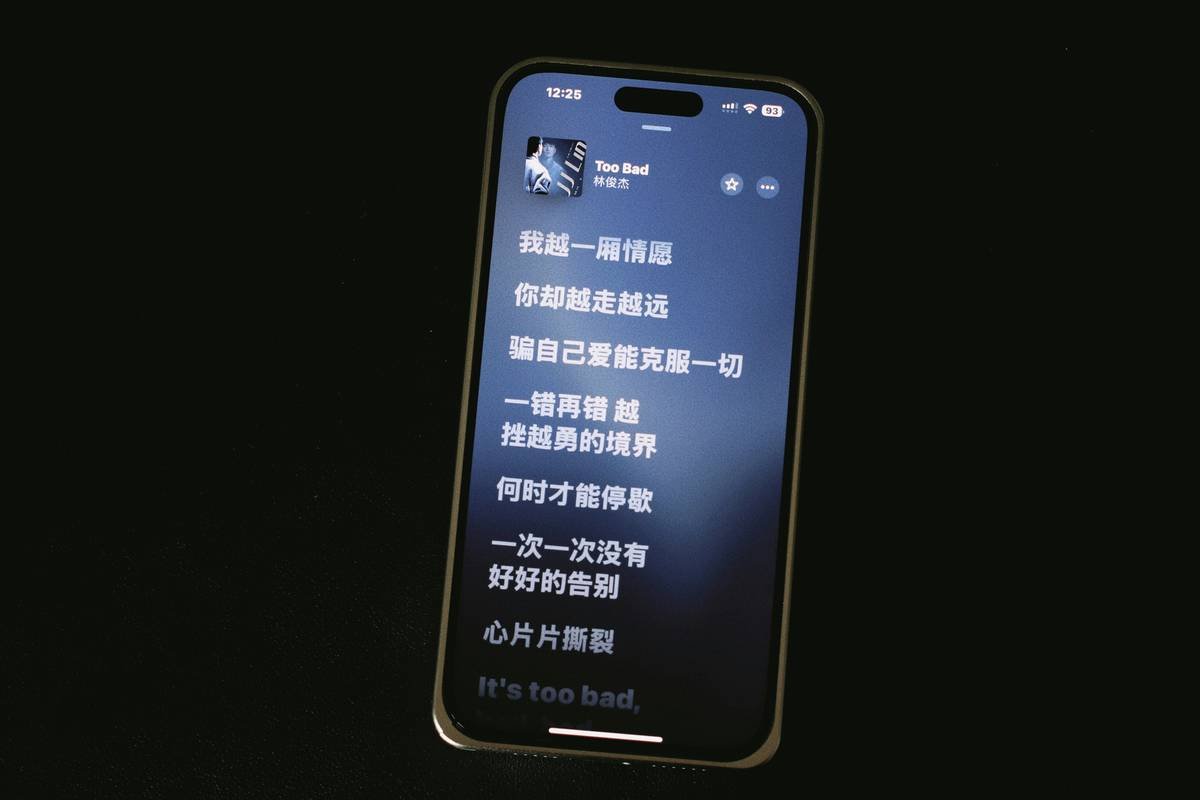
- Ignoring design principles: Poor contrast between text and background makes people hit ‘skip’ faster than Sonic running through Green Hill Zone.
So how do you avoid falling victim to bad visuals and wasted hours?
Step-by-Step Guide to Using a Text Overlay Video Editor
1. Pick the Right App
Optimist You: *“There are so many great apps!”*
Grumpy You: *“Ugh, fine—but only if they don’t crash my phone.”*
Popular options include Canva, CapCut, and Adobe Premiere Rush—all packed with pre-designed templates perfect for adding text overlays.
2. Import Your Footage
Once you’ve downloaded your chosen app, upload your raw clip. Most editors allow drag-and-drop functionality, making this step quick and painless.
3. Choose Fonts Wisely
Select bold, readable fonts that complement your video tone. Sans-serif fonts like Arial work best for short texts, whereas script fonts scream elegance but might sacrifice legibility depending on size.
4. Align Text Strategically
Place text above or below critical elements like faces or action sequences—not directly over them. This ensures viewers focus on both visuals and words simultaneously.
5. Test for Accessibility
Preview your edits across devices (phone, tablet, desktop). Ensure colors pass WCAG standards for contrast ratio—a technical term meaning “Can someone actually read this?”
5 Tips for Perfecting Your Text Overlays
- Maintain consistency by sticking to 2-3 complementary font styles.
- Use animations sparingly; excessive movement distracts viewers.
- Add subtle shadows/blur effects behind text to enhance visibility against busy backgrounds.
- Keep captions concise—you’re fighting against attention spans of mere seconds!
- Terrible Tip: Don’t copy random viral trends unless they align with YOUR brand aesthetic. Trust me, seeing pink comic sans everywhere gives me hives.
Real-Life Examples: Before & After Success Stories
Let’s talk about Jane Doe (@HealthyHustleJane), a fitness coach struggling to grow her social media channel. Her initial videos lacked cohesive branding and featured clunky text overlays atop shaky footage. Enter: A solid text overlay video editor paired with some smart tweaks.
Before: Blurry white text floating aimlessly over pixelated b-roll clips.
After: Clean Helvetica captions synced perfectly with smooth transitions alongside professionally shot content. Within weeks, Jane doubled her followers—and bookings!
FAQs About Text Overlay Video Editors
What Makes a Good Text Overlay Video Editor?
User-friendly interfaces combined with advanced customization options set top-tier tools apart. Look for drag-and-drop simplicity plus robust export quality.
Do Free Tools Work Well Enough?
Short answer: Sometimes. Apps like CapCut offer decent free versions, but premium upgrades unlock advanced functionalities worth considering.
Which Platforms Are Best For Sharing Edited Videos?
For maximum reach, prioritize platforms optimized for vertical video formats, such as Instagram Stories and TikTok.
Conclusion
You made it! We explored why investing in a reliable text overlay video editor matters more than ever before. By following our step-by-step guide and implementing killer tips tailored specifically for boosting productivity AND well-being—you’ll transform dull clips into engaging visual stories guaranteed to captivate audiences.
Remember, practice makes progress. So grab your favorite app, experiment fearlessly, and watch those views skyrocket. Oh, and since nostalgia always wins hearts…
Pixel magic happens fast,
Text dances upon screens bright.
Your story shines anew.
— Like a Tamagotchi, your SEO needs daily care 😉.